
Products & Menu
This page is for managers who set up and maintain the menu in the POS system.
In This Section
| Page | What It Covers |
|---|---|
| Deals | Combo deals, BOGO, bundle deals |
| Half & Half | Combining two products into one item |
| Custom Items | Misc product and custom item for unlisted products |
Overview
The menu in Pratham ResPOS is organised as:
Categories
  └── Products
        ├── Modifiers (toppings/extras)
        ├── Variants (sizes/options)
        └── Deals (combos, BOGO, bundles)
Categories
Categories group products for easy navigation on the POS screen.
Categories are created and managed in the Admin portal, not on the POS.
See Categories — Admin Reference for step-by-step instructions on creating, editing, and reordering categories.
Products
Products (items) are created and managed in the Admin portal, not on the POS.
See Items — Admin Reference for step-by-step instructions on creating, editing, and managing products including pricing, images, and availability toggles.
Modifiers
Modifiers are extras or options that customers select when ordering a product (e.g., toppings on a pizza, sauce choices on a burger). Modifiers and modifier categories are created and managed in the Admin portal.
- Modifiers — Admin Reference — create and manage individual modifier options
- Modifier Categories — Admin Reference — group modifiers into categories (e.g., "Sauces", "Size upgrades")
Product Variants
Variants represent different versions of the same product, each with its own price (e.g., Small $10, Medium $14, Large $18). Variants are configured in the Admin portal on the item form.
See Items — Admin Reference for variant setup.
Time-Based Discounts
Products can have automatic discounts applied at specific times (e.g., Happy Hour pricing).
- Open the product.
- Tap Add Schedule / Discount.
- Configure:
- Day(s) of the week
- Start and end time
- Discount amount (flat or percentage)
- Applies to: Dine-In, Takeaway, Online, or all
- Save.
The discount applies automatically when orders are created during the scheduled time.
Age Restriction on Products
Some products — such as alcohol or tobacco — require a minimum age check before they can be added to an order. Pratham ResPOS supports age verification at the category level.
Admin portal only
Age restrictions are configured per category in the admin portal (e.g., setting minimum age 18 on an "Alcohol" category). All products within that category will then trigger an age check on the POS.
How It Works at the POS
When a staff member adds an age-restricted product to an order:
- A Confirm Age dialog appears showing the minimum age requirement.
- The staff member must confirm that the customer meets the age requirement.
- Once confirmed, the product is added to the order.
If the order already has a confirmed age that meets or exceeds the new product's requirement, the dialog is skipped automatically.
Example: If age 18 was already confirmed for a beer, adding another 18+ product won't re-prompt. But adding a product with a higher age requirement (e.g., 25+) will prompt again.
The verified minimum age is recorded on the order and printed on the receipt where applicable.
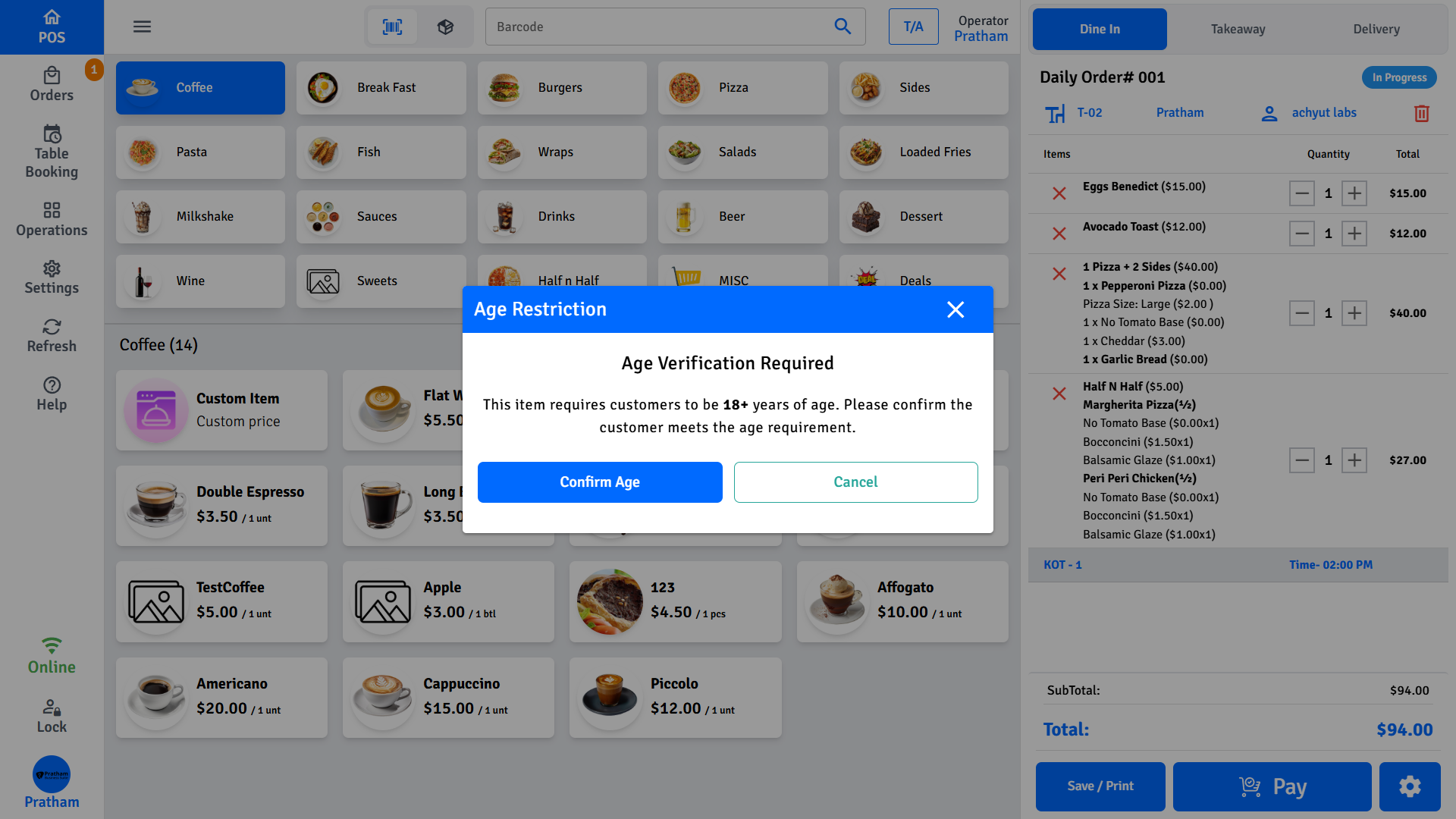
Important: This is a staff-acknowledged check — it is the responsibility of the staff member to verify the customer's ID. The POS does not scan IDs.
Customizing Product Display
Product Card Layout
In POS Settings → Appearance, you can change how products appear on the POS screen. Three layouts are available:
- Compact — Categories appear at the top; products for the selected category are shown below.
- Full — Only categories are displayed. Tap a category to view its products.
- Vertical — Categories are listed on the left; products for the selected category are shown on the right.
Show/Hide Product Images
Toggle product images on or off for the product grid tiles.
Category Color Customization
Assign custom colors to categories in Operations → Category Color Customization.
Product Color Customization
Assign custom colors to individual products in Operations → Product Customization → Product Color Customization.